As an Amazon Associate, I earn from qualifying purchases at no extra cost to you.
6 Best Wireless Routers for Home Use (Buying Guide) 2026
 ByZayyan

Your WiFi is slow again. The video buffered right in the middle of that meeting. Your kids are yelling because the game keeps lagging. And your smart TV just gave up entirely.




Picking the right router feels overwhelming. Too many specs, too many brands. In this article I will show you the top 6 best wireless routers for home use so you can finally get the fast, reliable WiFi your home deserves.
Top 6 Best Wireless Routers for Home Use You Can Buy Now
ASUS RT-BE58U WiFi 7 Dual-Band Router – Best Budget WiFi 7 Pick
If you want WiFi 7 without spending a fortune, the ASUS RT-BE58U is the one to look at. It brings next-gen wireless tech into a price range that actually makes sense for most households. That’s a big deal.
Speed-wise, it hits up to 6.5 Gbps combined across its two bands. For a dual-band router, that’s seriously impressive. You can stream 4K, run video calls, and game online without things falling apart on you.
What makes this router stand out is the ASUS AiMesh support. So if your home has dead zones, you can pair it with another AiMesh-compatible router and build a whole mesh network without buying an entirely new system. That kind of flexibility is rare at this price.
Security is solid too. It comes with ASUS AiProtection powered by Trend Micro, which scans for threats in real time. You get parental controls, traffic monitoring, and automatic security updates built right in. Great for families.
- WiFi 7 (802.11be) dual-band
- Up to 6.5 Gbps total speed
- AiMesh compatible for easy expansion
- AiProtection with Trend Micro security
- Best for: budget-conscious households wanting future-proof WiFi
NETGEAR Orbi RBE873 Tri-Band Mesh WiFi 7 System – Best for Large Homes
Big houses are hard to cover with a single router. The NETGEAR Orbi RBE873 was built exactly for that problem. It’s a full mesh system with WiFi 7 on board, and it covers serious square footage without breaking a sweat.
This system delivers up to 10 Gbps combined throughput. That’s fast enough to handle a house full of 4K streams, smart home gadgets, gaming consoles, and work laptops all at once. Nobody has to fight for bandwidth.
The dedicated backhaul band is what sets Orbi apart from cheaper mesh systems. While your devices use one band, the nodes talk to each other on a completely separate channel. That means less congestion and more consistent speeds throughout your home.
Setup is refreshingly easy through the Orbi app. Even if you’re not a tech person, you’ll have it running in under 20 minutes. And NETGEAR Armor, powered by Bitdefender, keeps your whole network protected from malware and intrusions automatically.
- WiFi 7 tri-band mesh system
- Up to 10 Gbps combined speed
- Dedicated backhaul for less interference
- NETGEAR Armor security included
- Best for: large homes and multi-floor coverage
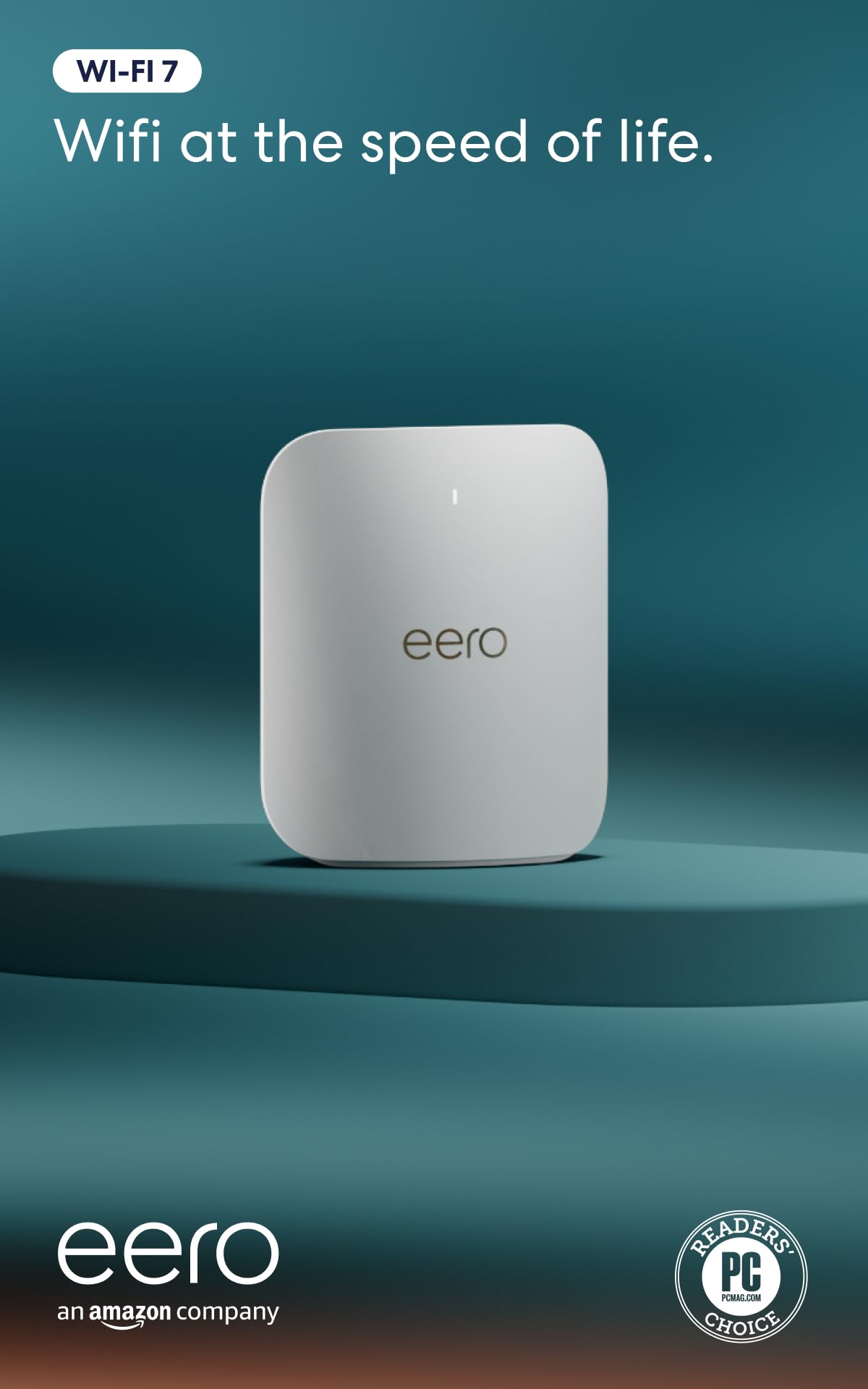
Amazon eero Tri-Band Mesh WiFi Router – Best for Simplicity
Not everyone wants to dig through settings menus and port forwarding screens. If you just want WiFi that works, without the headache, the Amazon eero is your answer. It’s probably the easiest router you’ll ever set up.
The eero app walks you through everything step by step. From unboxing to connected devices, most people are up and running in about 10 minutes. No IT degree needed. And the app stays useful after setup, letting you pause internet for certain devices, run speed tests, and manage your network from anywhere.
Performance is solid for everyday home use. The tri-band design helps balance your devices across bands automatically, so you’re not stuck managing which devices connect where. It just handles it for you in the background.
eero also integrates natively with Alexa, which is a nice bonus if you’re already in the Amazon ecosystem. You can check network status or pause the kids’ devices with a simple voice command. eero Plus adds advanced security and content filters if you need more control.
- Tri-band mesh WiFi
- Incredibly easy app-based setup
- Alexa integration built in
- eero Plus subscription for advanced security
- Best for: non-tech users who want reliable, simple WiFi
Linksys Cognitive Tri-Band Mesh WiFi Router – Best Self-Optimizing System
Most routers just sit there and do what you tell them. The Linksys Cognitive Mesh router actually thinks for itself. It constantly monitors your network and adjusts in real time to keep performance as high as possible. That’s not a gimmick. It actually works.
The “cognitive” part comes from built-in AI that tracks device usage patterns, traffic loads, and interference. Then it shifts things around automatically to prevent slowdowns before you even notice them. If you’ve got a busy household, this is a huge quality-of-life upgrade.
Speed is strong across the board. The tri-band setup gives you plenty of bandwidth to go around, and the dedicated backhaul keeps the mesh nodes communicating efficiently. Streams stay smooth, calls don’t drop, and gaming stays responsive.
The Linksys app gives you good visibility into what’s happening on your network. You can set up guest networks, manage parental controls, and prioritize specific devices easily. It’s not as slick as eero’s app, but it gets the job done well enough for most people.
- Tri-band cognitive mesh WiFi
- AI-driven self-optimization
- Strong mesh performance with dedicated backhaul
- Easy device management via Linksys app
- Best for: busy households that want set-it-and-forget-it performance
Synology WRX560 Dual-Band WiFi 6 Router – Best for Advanced Users
The Synology WRX560 is different from everything else on this list. It runs on SRM, Synology’s own router operating system, which is way more powerful than what most home routers ship with. If you like being in control, you’ll love this thing.
You get detailed traffic analysis, VLAN support for network segmentation, and built-in intrusion prevention. This is the kind of stuff you’d usually only see on commercial-grade hardware. Having it at home is genuinely useful, especially if you work remotely or run a home lab setup.
WiFi 6 keeps it fast and efficient. While it’s not WiFi 7, the WRX560 handles real-world speeds extremely well. The dual-band design is clean and reliable, and the beamforming technology helps push signal directly toward your connected devices rather than spraying it in every direction.
One honest note: there’s a learning curve here. The interface is powerful but it takes some time to explore. If you’re the type who just wants to plug it in and forget it, this probably isn’t your router. But if you’re a tech-savvy user who wants real control, this is genuinely exciting hardware.
- WiFi 6 dual-band
- Synology SRM operating system
- VLAN, traffic analysis, and intrusion prevention
- Deep customization and control
- Best for: tech enthusiasts and home network power users
TP-Link Archer BE550 Tri-Band WiFi 7 Router – Best Value WiFi 7 Option
The TP-Link Archer BE550 gives you WiFi 7 at a price that won’t make your eyes water. It’s one of the most affordable true WiFi 7 routers you can buy right now, and the performance backs it up. TP-Link has been quietly making great routers for years, and this one continues that streak.
You get tri-band coverage, which means your 2.4 GHz, 5 GHz, and 6 GHz bands are all running at the same time. The 6 GHz band is the real star here. It’s faster, less congested, and perfect for your newest devices that need maximum speed and minimum latency.
HomeShield is TP-Link’s built-in security suite, and it’s genuinely good. You get real-time threat protection, parental controls with detailed filtering, and QoS tools that let you prioritize gaming or streaming traffic over everything else. A basic version is included free. A paid tier adds more advanced features.
Setup through the Tether app is smooth and fast. You don’t need to touch a browser or type in a single IP address. Just download the app, follow the steps, and you’re done. Managing devices afterward is just as easy. Solid router, honest price.
- WiFi 7 tri-band (including 6 GHz band)
- HomeShield security with parental controls
- QoS traffic prioritization
- Easy Tether app setup
- Best for: value shoppers who want real WiFi 7 performance
I hope this guide made your decision a whole lot easier. Each router here is genuinely good at something specific. If you want simplicity, go eero. If you need serious coverage, grab the Orbi. Want the best value WiFi 7? The TP-Link Archer BE550 is hard to beat. Think about your home size, your budget, and how tech-savvy you are. Then pick the one that fits your life, not just the one with the biggest number on the box.
| Router | WiFi Standard | Bands | Best For |
|---|---|---|---|
| ASUS RT-BE58U | WiFi 7 | Dual-Band | Budget WiFi 7 buyers |
| NETGEAR Orbi RBE873 | WiFi 7 | Tri-Band Mesh | Large homes |
| Amazon eero | WiFi 6 | Tri-Band Mesh | Simplicity seekers |
| Linksys Cognitive Mesh | WiFi 6 | Tri-Band Mesh | Busy households |
| Synology WRX560 | WiFi 6 | Dual-Band | Advanced/power users |
| TP-Link Archer BE550 | WiFi 7 | Tri-Band | Best value WiFi 7 |
Things to Consider Before Buying a Wireless Router for Home Use (Don’t Skip These)
You finally decided to stop blaming your internet provider and upgrade your router. Smart move. But now you’re staring at a wall of options online and wondering what any of it actually means.
Most people just grab whatever looks popular or cheapest. Then they’re frustrated three weeks later because their WiFi still drops in the bedroom or their video calls keep freezing. You don’t have to go through that.
Here are the six most important things to consider before buying a wireless router for home use, explained simply so you can actually make the right call.
Coverage Area and Your Home’s Size
The number one mistake people make is buying a router without thinking about their home’s layout. A router that works great in a small apartment can be completely useless in a two-story house with thick walls. Square footage matters, but so does your floor plan.
Walls, floors, and even large appliances eat up your WiFi signal. Concrete and brick walls are especially brutal. If your router sits in the living room and your bedroom is two walls away, you might only get half the signal strength by the time it reaches you. That’s a real problem.
A single router typically covers around 1,500 to 2,500 square feet, depending on the brand and model. If your home is bigger than that, or has an awkward layout, you should seriously consider a mesh WiFi system instead. Mesh systems use multiple nodes to blanket your whole home in signal.
- Measure your home’s square footage before shopping
- Count walls and floors between your router spot and your devices
- Consider mesh systems for homes over 2,000 square feet
- Dead zones near the garage or basement are a sign you need better coverage
WiFi Standards: WiFi 5, 6, or 7
This part confuses a lot of people, but it’s actually pretty simple. WiFi standards are basically versions of the technology. Higher number means newer, faster, and more efficient. WiFi 5 is older. WiFi 6 is current and solid. WiFi 7 is the newest and genuinely fast.
WiFi 6 handles multiple devices at once much better than WiFi 5. So if you have 15 or 20 devices at home, phones, laptops, smart TVs, thermostats, and cameras, WiFi 6 keeps everything running smoothly without fighting over bandwidth. That’s where most households land right now.
WiFi 7 is newer and noticeably faster, especially on the 6 GHz band. But here’s the honest part: most of your current devices probably don’t even support WiFi 7 yet. You’ll still benefit from buying a WiFi 7 router because it’s future-proof, but don’t expect a miracle on older hardware.
- WiFi 5 is fine for very light use but getting outdated fast
- WiFi 6 is the sweet spot for most households right now
- WiFi 7 is worth buying if your budget allows it, your devices will catch up
- Check if your laptop and phone support WiFi 6 before assuming you need WiFi 7
Number of Devices You Connect Daily
Think about everything in your home that connects to WiFi. Your phone. Your partner’s phone. The kids’ tablets. Smart lights. A security camera or two. The gaming console. Your work laptop. It adds up faster than you think, and your router feels all of it.
Older or cheaper routers start struggling when too many devices connect at once. You’ll notice it as slowdowns during peak evening hours, or when everyone in the house is online at the same time. That lag isn’t your internet plan’s fault. It’s your router running out of capacity.
Look for routers that support MU-MIMO and OFDMA technology. Those are features that help your router talk to multiple devices at the same time instead of one at a time. It sounds technical but the result is simple: things just work better when your house is busy.
- Count every connected device in your home, including smart home gadgets
- Basic routers handle around 10-15 devices comfortably
- Homes with 20+ devices need a router with MU-MIMO and OFDMA
- A congested router causes slowdowns even with fast internet
Internet Speed Your Plan Actually Supports
Here’s something most people don’t realize. Your router needs to match your internet plan’s speed, or you’re leaving performance on the table. If you’re paying for gigabit internet but your router can only handle 300 Mbps, you’re wasting money on both ends.
Check your internet plan’s download speed. Then check the router’s maximum throughput. The router’s number should be at least equal to, or higher than, your plan. Don’t buy a budget router with a gigabit internet plan. That combination will frustrate you every single day.
Also check the WAN port speed on any router you’re looking at. Some older or budget routers still ship with 100 Mbps WAN ports, which instantly caps your speeds no matter how fast your plan is. Always look for a Gigabit WAN port at minimum. For very fast plans, look for a 2.5G WAN port.
- Know your internet plan’s download and upload speeds before shopping
- Your router’s throughput should match or exceed your plan’s speed
- Always look for a Gigabit WAN port, and 2.5G if you have a very fast plan
- A slow router bottlenecks fast internet, the two have to work together
Security Features Built Into the Router
Most people set up their router once and never think about security again. That’s a problem. Your router is the front door to everything in your home network, and if it’s unprotected, everything connected to it is at risk too.
Look for routers that offer automatic firmware updates. Old firmware means known security holes that attackers can actually use. Some routers, like the ASUS AiProtection models, scan your network traffic in real time and block suspicious activity automatically. That kind of built-in protection is genuinely valuable.
Parental controls matter too, especially if you have kids at home. Being able to block certain websites, limit screen time, or pause internet access for specific devices is a feature you’ll use more than you think. Some routers include this for free. Others lock it behind a paid subscription, so check that before you buy.
- Look for routers with automatic firmware updates
- Real-time threat detection is a strong bonus feature
- Parental controls are useful even for households without young kids
- Check if security features cost extra before committing to a purchase
Your Budget and Long-Term Value
Price matters, but the cheapest router usually costs you more in the long run. A budget router that you replace in 18 months ends up more expensive than a mid-range one that lasts five years without issues. Think of it as an investment in your daily quality of life.
That said, you don’t need to spend top dollar for a great experience. The sweet spot for most households is somewhere in the mid-range, where you get WiFi 6, solid coverage, and decent security without paying for features you’ll never use. Power users and large homes might need to spend more, and that’s completely fine.
Watch out for subscription costs that aren’t obvious upfront. Some routers look affordable but then charge you monthly for parental controls or security features that should honestly be free. Read the fine print. Know what’s included and what costs extra before you click buy.
- Budget routers work short-term but often cost more over time
- Mid-range routers hit the sweet spot for most households
- Check for hidden subscription fees before buying
- Think about how long you want this router to last, then buy accordingly
I hope this gives you a clear starting point before you spend a single cent. Coverage, device count, speed matching, security, WiFi standards, and budget all connect. Ignore one and the others suffer. Take five minutes to think through each of these points for your specific home, and you’ll make a choice you won’t regret.
| Factor | What to Check | Why It Matters | Quick Tip |
|---|---|---|---|
| Coverage Area | Your home’s square footage and layout | A router too weak for your space creates dead zones | Get a mesh system for homes over 2,000 sq ft |
| WiFi Standard | Whether to choose WiFi 5, 6, or 7 | Newer standards handle more devices and speed better | WiFi 6 is the best value for most homes right now |
| Number of Devices | Total count of all connected devices at home | Too many devices on a weak router causes slowdowns | Look for MU-MIMO and OFDMA support for 20+ devices |
| Internet Speed | Your plan’s download and upload speeds | Your router must match or beat your plan’s throughput | Always get a Gigabit WAN port, or 2.5G for fast plans |
| Security Features | Firmware updates, threat detection, parental controls | Unprotected routers put every device at risk | Check if security features are free or behind a paywall |
| Budget and Value | Upfront cost plus any ongoing subscription fees | Cheap routers often cost more when replaced frequently | Mid-range routers offer the best long-term value |
Frequently Asked Questions (FAQs)
Is it worth upgrading to WiFi 7 right now?
Yes, if your budget allows it. WiFi 7 brings much lower latency and significantly faster speeds compared to WiFi 6 or 6E. Even if your devices don’t fully support WiFi 7 yet, buying a WiFi 7 router now means you’re ready when they do. It’s a solid investment that keeps your network relevant for years instead of months.
Is it hard to set up a mesh WiFi system at home?
Not anymore. Modern mesh systems like eero and Orbi come with apps that walk you through every step. Most people finish setup in under 15 minutes. You don’t need any technical knowledge. Just follow the app, place your nodes in good spots around the house, and you’re good to go.
Can a single router cover my whole house?
It depends on your home’s size and layout. A single router works fine in apartments or small homes. But if you have a large house, multiple floors, or thick walls, you’ll get dead zones. In that case, a mesh system is the smarter choice. It spreads coverage evenly so every corner gets a solid signal.
Can I use these routers with my internet provider’s modem?
Yes, all six routers on this list work with a standard modem from your ISP. You just plug the router into the modem using an Ethernet cable and follow the setup instructions. Some ISPs give you a modem and router combo, but using a dedicated router like these usually gives you better performance and more control.
Do I need to pay for the security features on these routers?
Some routers include basic security for free, like the ASUS AiProtection and TP-Link HomeShield basic tier. Others, like NETGEAR Armor and eero Plus, require a monthly or yearly subscription for full features. The free versions still offer solid protection. The paid tiers just add things like advanced content filtering, VPN support, and more detailed reports.
Is it better to buy a mesh system or a single router?
It depends on your home. Single routers are cheaper and work great in smaller spaces. Mesh systems cost more but give you seamless coverage across bigger areas without dead zones. If you’ve ever had to stand near the router to get a good signal, you need a mesh system. If your home is under 1,500 square feet, a single good router is probably enough.
Can I control who uses my WiFi and when?
Yes, all six routers here come with parental controls or device management features. You can block certain websites, limit screen time, and even pause internet access for specific devices. The eero app and Linksys app make this especially easy. So yes, you can absolutely cut off the WiFi when homework time starts.
Do I need a WiFi 7 router if my devices are still on WiFi 5 or 6?
You don’t need one, but it’s not a bad idea. A WiFi 7 router is fully backward compatible, meaning all your older devices will still connect and work fine. You won’t magically get WiFi 7 speeds on those older devices, but your network will handle traffic more efficiently overall. And when you do upgrade your devices, you’re already ready.
Is the Synology WRX560 too complicated for regular home users?
Honestly, yes, for most people. The WRX560 is powerful, but it’s designed for users who want deep control over their network. If you just want easy WiFi, go with eero or the TP-Link Archer BE550 instead. But if you’re someone who enjoys tinkering with network settings and wants enterprise-style features at home, the Synology is genuinely exciting.
Can these routers handle smart home devices alongside phones and laptops?
Absolutely. All six routers here handle mixed device environments well. Smart home gadgets like lights, thermostats, and cameras use very little bandwidth individually. The real trick is keeping them on your 2.4 GHz band while your phones and laptops use the faster 5 GHz or 6 GHz bands. Most of these routers do that separation automatically, which keeps everything running smoothly.