As an Amazon Associate, I earn from qualifying purchases at no extra cost to you.
6 Best Wireless Routers for Xfinity (Buying Guide) 2026
 ByZayyan

If you’re paying good money for Xfinity, your router better keep up. A bad router chokes your speeds, drops your connection, and turns movie night into buffering hell. In this article I will show you the top 6 best wireless routers for Xfinity that actually work, so you can stop guessing and start streaming.



Top 6 Best Wireless Routers for Xfinity You Can Buy Now
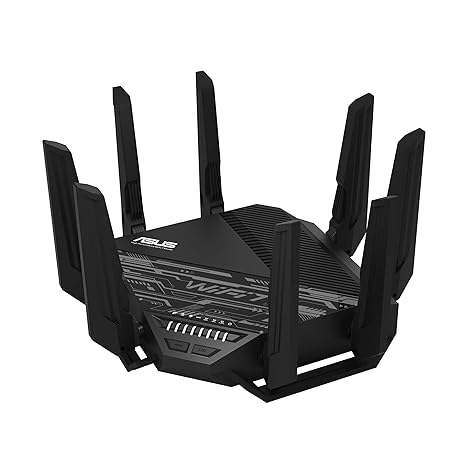
ASUS RT-BE96U – Best Overall WiFi 7 Powerhouse
The ASUS RT-BE96U is the kind of router you buy when you’re done messing around. It runs on WiFi 7, which is the newest and fastest standard out there right now. If you’ve got Xfinity’s gigabit plan, this router will actually let you use all of it.
What makes it special is the 10 Gbps WAN port. Most routers cap out at 1 Gbps on the WAN side, which means they quietly bottleneck your connection before the signal even reaches your devices. The RT-BE96U doesn’t do that. Plug in your Xfinity modem and this thing pulls every bit of speed you’re paying for.
The coverage is massive too. We’re talking up to 7,000 square feet. Got a big house? Two floors? A garage that never gets signal? This router handles all of it without breaking a sweat.
ASUS also built in AiProtection Pro, which is free security monitoring for your whole network. No subscription. That’s a big deal when competitors charge you monthly for the same thing.
- WiFi standard: WiFi 7 (802.11be)
- Coverage: Up to 7,000 sq ft
- WAN port: 10 Gbps
- Security: AiProtection Pro (no subscription)
- Best for: Power users and large homes on Xfinity gigabit plans
TP-Link Archer BE24000 – Best Quad-Band Beast for Busy Homes
The TP-Link Archer BE24000 sounds like a spaceship model number, and honestly, it kind of performs like one. This is a quad-band WiFi 7 router, which means it’s got four separate bands running at once. More bands means more traffic can move without stepping on itself.
If you’ve got 10, 15, maybe 20 devices at home, this is where this router shines. Smart TVs, phones, laptops, gaming consoles, smart home gadgets, all of it running at the same time without slowing each other down. That’s a real problem in most houses, and quad-band solves it.
The total combined speed hits 24 Gbps across all bands. You won’t hit that ceiling anytime soon, but having room to grow matters. Xfinity keeps bumping up plan speeds, so getting a router that won’t be outdated in two years is smart buying.
TP-Link’s HomeShield feature gives you basic network security and parental controls too. It’s not as full-featured as ASUS’s offering without a paid plan, but the free tier still does the job for most people.
- WiFi standard: WiFi 7 quad-band
- Total speed: Up to 24 Gbps
- Best for: Homes with lots of connected devices
- Security: HomeShield (free + paid tiers)
- Ports: Multiple 10G and 2.5G options
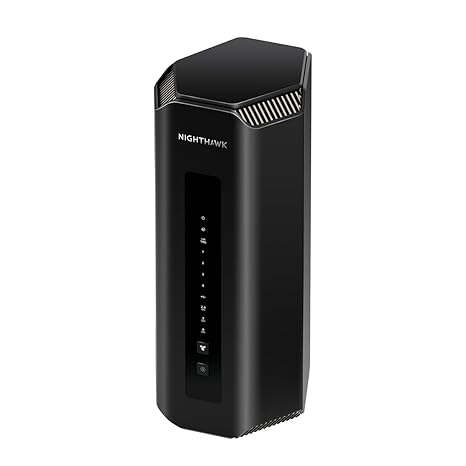
NETGEAR Nighthawk RS700S – Best for Serious Speed Junkies
The NETGEAR Nighthawk RS700S looks aggressive because it is aggressive. This is a tri-band WiFi 7 router built for people who want the fastest possible speeds and don’t want to think too hard about setup.
The RS700S pushes up to 19 Gbps combined. For Xfinity users on the 2 Gbps plan, this is one of the few routers that can actually handle that kind of throughput. Most routers quietly tap out before they get there. This one doesn’t.
NETGEAR kept the setup process clean too. The Nighthawk app walks you through everything in about five minutes. You don’t need to be a tech person. If you can follow instructions on a phone screen, you can set this up.
One thing to know: NETGEAR Armor (their security suite) costs extra after the trial period ends. It’s good software, but it’s worth factoring that into your budget. If you want the speed without the subscription, you can skip Armor and still get a rock-solid connection.
- WiFi standard: WiFi 7 tri-band
- Combined speed: Up to 19 Gbps
- Setup: Easy via Nighthawk app
- Security: NETGEAR Armor (subscription after trial)
- Best for: Xfinity multi-gig plan users
Google Nest WiFi Pro 6E – Best for People Who Hate Complicated Tech
Not everyone wants to mess with settings, channels, and QoS configurations. If that’s you, Google Nest WiFi Pro 6E was basically made for you. It’s the most beginner-friendly router on this list, and it does the job really well for most Xfinity users.
Setup takes maybe ten minutes in the Google Home app. Seriously. You scan a QR code, follow a few steps, and you’re connected. Google handles the technical stuff in the background so you don’t have to.
The 6E band (6 GHz) gives you fast, clean speeds for nearby devices. Older 2.4 GHz and 5 GHz bands cover everything else. The router picks the best band for each device automatically. You never have to think about it.
It also works as a mesh node if you want to expand later. Buy another Nest WiFi Pro and they talk to each other. Your coverage grows without any complicated setup. For Xfinity plans up to 1 Gbps, this thing is perfectly matched and seriously low maintenance.
- WiFi standard: WiFi 6E tri-band
- Setup: Super easy via Google Home app
- Mesh capable: Yes
- Best for: Non-techie Xfinity users
- Smart home integration: Works great with Google ecosystem
Amazon Eero Pro 6E – Best Mesh System for Whole-Home Coverage
If you’ve ever had that one room where the WiFi just dies, the Amazon Eero Pro 6E is your answer. It’s a mesh router, which means you can add more units to spread coverage across your whole home without running any cables.
The Eero Pro 6E supports the 6 GHz band, which is fast and less crowded than the older bands. Devices close to the router get blazing speeds. Devices further away still get solid, reliable connections because the mesh fills in the gaps.
Amazon built Eero to be dead simple. The app is clean, setup is fast, and you manage everything from your phone. No web portals with confusing menus. Just a clear, friendly app that shows you what’s connected and lets you control it easily.
One heads-up: Eero Secure (their security and parental controls subscription) is pushed pretty hard. The router works fine without it, but some features are locked behind that paywall. For Xfinity users with medium-sized homes and multiple floors, this mesh setup is genuinely one of the best choices you can make.
- WiFi standard: WiFi 6E tri-band
- Mesh capable: Yes, easily expandable
- Setup: Very easy via Eero app
- Security: Eero Secure (subscription)
- Best for: Multi-story homes and dead zone elimination
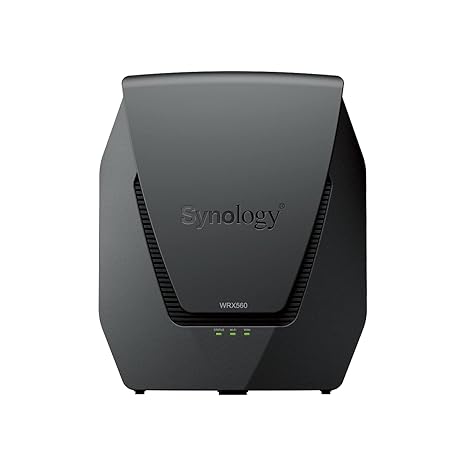
Synology WRX560 – Best for Network Control Freaks
The Synology WRX560 is different from everything else on this list. It’s not trying to win a speed race. It’s trying to give you the most control over your home network of any consumer router available. And it absolutely delivers on that.
Synology’s SRM (Synology Router Manager) software is genuinely impressive. You get detailed traffic monitoring, per-device bandwidth control, VLAN support, VPN server capabilities, and some of the best parental controls in the business. All without a subscription. That’s rare.
If you work from home, this router lets you set up a proper VPN server so you can securely access your home network from anywhere. IT professionals and small business owners connected through Xfinity will absolutely love this.
The hardware is WiFi 6 dual-band, not WiFi 7. So if raw cutting-edge speed is your priority, look at the ASUS or TP-Link options. But if you want deep control, security features, and software that actually respects your intelligence, the WRX560 is the one. It’s the router for people who actually want to understand their network.
- WiFi standard: WiFi 6 dual-band
- Software: Synology Router Manager (SRM)
- Security: Built-in threat prevention, no subscription
- VPN: Yes, built-in server
- Best for: Power users, remote workers, privacy-focused Xfinity users
I hope this guide helped you find the right router for your Xfinity setup. Every pick on this list solves a real problem. Want raw speed? Go ASUS or NETGEAR. Got a big house? Eero mesh has you covered. Hate complicated tech? Google Nest is your friend. Want full control? Synology wins. Pick the one that fits your life, not just the specs sheet.
| Router | WiFi Standard | Best For | Subscription Needed? |
|---|---|---|---|
| ASUS RT-BE96U | WiFi 7 | Large homes, gigabit plans | No |
| TP-Link Archer BE24000 | WiFi 7 Quad-Band | Many devices, future-proofing | Optional |
| NETGEAR Nighthawk RS700S | WiFi 7 Tri-Band | Multi-gig Xfinity plans | Optional (Armor) |
| Google Nest WiFi Pro 6E | WiFi 6E | Beginners, easy setup | No |
| Amazon Eero Pro 6E | WiFi 6E | Mesh coverage, multi-floor homes | Optional (Eero Secure) |
| Synology WRX560 | WiFi 6 Dual-Band | Control, security, remote work | No |
Things to Consider Before Buying a Wireless Router for Xfinity (Complete Guide 2026)
Picking a router feels simple until you actually start looking. Then suddenly you’re staring at WiFi 6, WiFi 7, tri-band, quad-band, mesh systems, and a dozen spec numbers that mean nothing to you yet. It gets overwhelming fast.
Here’s the thing. Most people buying a router for Xfinity make the same mistakes. They either way overspend on features they’ll never use, or they grab something cheap that quietly chokes their connection every single day. Knowing the right things to consider before buying a wireless router for Xfinity saves you money, saves you frustration, and actually gets you the speeds you’re paying for.
Your Xfinity Plan Speed Matters More Than Anything
Before you even look at routers, check what speed tier you’re paying for. Log into your Xfinity account and find your plan. Are you on 200 Mbps? 500 Mbps? 1 Gbps? This single number changes everything about which router makes sense for you.
A router has a maximum throughput, meaning it can only push so much data per second. If your plan gives you 1 Gbps but your router maxes out at 300 Mbps, you’re throwing money away every single month. You’re paying Xfinity for speed your router physically can’t deliver.
On the flip side, buying a WiFi 7 powerhouse for a 200 Mbps Xfinity plan is overkill. You won’t feel the difference. Match the router’s capabilities to your actual plan, and you’ll get the best value for your money.
- Check your Xfinity plan speed before shopping
- Make sure your router’s max throughput meets or exceeds your plan speed
- Don’t buy way more router than your plan actually needs
- Upgrade your plan and router together if you want faster speeds
Xfinity Compatibility and DOCSIS Modem Setup
Xfinity is a cable internet provider. That means you need a DOCSIS modem, either the Xfinity gateway they give you or one you buy yourself. Your router connects to that modem, so compatibility between the two matters a lot.
If you use the Xfinity gateway and want to add your own router, you need to put the gateway into bridge mode. This turns off its built-in router functions so your new router takes full control. Without bridge mode, you get double NAT, which causes slower speeds, laggy gaming, and weird connection drops.
Watch out for this one. A lot of people plug in a new router without enabling bridge mode, then wonder why their speeds didn’t improve. Call Xfinity support or go through your gateway’s admin panel at 10.0.0.1 to enable it. Takes about five minutes and makes a real difference.
- Xfinity uses cable internet, so you need a DOCSIS modem
- Put your Xfinity gateway into bridge mode before using a separate router
- Double NAT causes lag, slow speeds, and gaming issues
- Confirm your modem supports your Xfinity plan tier (DOCSIS 3.0 vs 3.1)
WiFi Standard: WiFi 5 vs WiFi 6 vs WiFi 6E vs WiFi 7
The WiFi standard printed on a router’s box tells you how modern the technology inside it is. WiFi 5 is older and slower. WiFi 6 is current and solid. WiFi 6E adds a 6 GHz band for less congestion. WiFi 7 is the newest and fastest available right now.
For most Xfinity users on plans under 500 Mbps, WiFi 6 is the sweet spot. It’s fast, affordable, and more than capable for everyday streaming, video calls, and remote work. You don’t need WiFi 7 unless you’re on a gigabit plan with 20+ devices running at the same time.
If you’re future-proofing and plan to keep the same router for 5+ years, WiFi 6E or WiFi 7 is worth the investment. Technology moves fast, and Xfinity keeps adding faster plans. Getting a router that can grow with your needs is just smart buying.
- WiFi 5 is older but still works for light use
- WiFi 6 is the best value for most Xfinity households
- WiFi 6E adds a 6 GHz band, great for crowded neighborhoods
- WiFi 7 is future-proof but costs more, best for heavy users
Coverage Area and Your Home’s Size
Speed means nothing if the signal can’t reach your devices. A great router stuck in the corner of your house still creates dead zones. Think about how big your home is and where you’ll place the router before you buy.
A single router usually covers 1,500 to 3,000 square feet well, depending on the model. If your home is bigger, or has thick concrete walls, multiple floors, or awkward layouts, a single router might not cut it. That’s when mesh systems start making a lot of sense.
Mesh systems use multiple units that work together to blanket your whole home in WiFi. Systems like Eero or Google Nest WiFi handle big homes beautifully. But if you live in a one-bedroom apartment, a mesh system is total overkill. A good single router is all you need.
- Single routers work well for homes under 2,500 sq ft
- Go mesh if you have multiple floors or dead zones
- Thick walls and concrete kill WiFi signal fast
- Place your router centrally, not hidden in a closet
Number of Connected Devices in Your Home
Think about every device connected to your WiFi right now. Phones, laptops, smart TVs, gaming consoles, tablets, smart speakers, thermostats, security cameras. Most homes have 15 to 25 devices connected at once, and that number is still growing.
Older or cheaper routers struggle when too many devices connect simultaneously. You’ll notice it as lag during video calls, buffering while gaming, or slow load times even though your speed test looks fine. The router is the bottleneck, not your Xfinity plan.
Look for routers that support MU-MIMO (Multi-User, Multiple Input, Multiple Output) technology. This lets the router talk to multiple devices at the same time instead of one at a time. It’s the difference between a single cashier serving a long line versus ten cashiers working at once. More lanes means less waiting.
- Count all your connected devices, not just the obvious ones
- 10 or fewer devices: most mid-range routers handle it fine
- 15 to 25 devices: look for MU-MIMO and at least tri-band
- 25+ devices: consider a quad-band WiFi 7 router or a mesh system
Security Features and Ongoing Costs
A router sits between your home and the entire internet. Everything passes through it. That makes security something you really shouldn’t ignore when choosing one for your Xfinity connection.
Some routers include built-in security features at no extra cost. ASUS routers come with AiProtection Pro for free, which scans for threats and blocks malicious sites automatically. Synology routers have built-in threat prevention that’s also free. Others like NETGEAR and Eero push you toward paid subscription plans to access their security suites.
Factor this into your total budget. A router priced at $150 with a $10 monthly security subscription costs more over two years than a $250 router with free built-in security. Also check if parental controls are free or paywalled. If you have kids at home, this matters a lot more than most spec sheets suggest.
- Look for routers with free built-in security, not just a trial period
- Some brands charge monthly for features that competitors include free
- Parental controls are often locked behind paid plans, so check first
- Calculate total 2-year cost, not just the upfront sticker price
I hope this breakdown made the whole process feel a lot less confusing. Knowing the right things to consider before buying a wireless router for Xfinity means you won’t waste money, won’t deal with avoidable headaches, and you’ll actually get the performance you’re paying for every month. Start with your plan speed, match the router to your home size and device count, and don’t forget to factor in the real long-term cost.
| What to Check | Why It Matters | What to Look For | Watch Out For |
|---|---|---|---|
| Xfinity Plan Speed | Router must match your plan’s throughput | Router that meets or exceeds your plan speed | Overpaying for more speed than your plan supports |
| Modem Compatibility | Wrong setup causes double NAT and slow speeds | DOCSIS 3.1 modem for gigabit plans | Forgetting to enable bridge mode on Xfinity gateway |
| WiFi Standard | Newer standard means faster, more reliable signal | WiFi 6 for most homes, WiFi 7 for heavy users | Buying WiFi 7 for a basic 200 Mbps Xfinity plan |
| Home Coverage Area | Signal must reach every room you use | Single router for small homes, mesh for large ones | Placing router in a corner or inside a cabinet |
| Number of Devices | Too many devices overloads weaker routers | MU-MIMO support, tri-band or quad-band for 15+ devices | Cheap routers that throttle when more than 10 devices connect |
| Security and Ongoing Costs | Some routers charge monthly for basic protection | Free built-in security like ASUS AiProtection or Synology | Hidden subscription fees that inflate your real total cost |
Frequently Asked Questions (FAQs)
Is it necessary to buy a router if I already have the Xfinity gateway?
Not strictly necessary, but often worth it. The Xfinity gateway is a decent all-in-one device, but it rarely performs as well as a dedicated router in terms of speed, range, and reliability. If you’re on a higher-speed plan or have a bigger home, a separate router almost always gives you a noticeably better experience for the money.
Is it possible to use any WiFi 7 router with Xfinity?
Yes, as long as the router supports standard DOCSIS compatibility through a separate modem. Xfinity uses cable internet, so you need a compatible DOCSIS modem first, then connect your WiFi 7 router to it. All six routers on this list work with Xfinity when paired with a proper modem or the Xfinity gateway in bridge mode.
Can I use a mesh router system with my Xfinity plan?
Absolutely. Mesh systems like the Eero Pro 6E and Google Nest WiFi Pro 6E work great with Xfinity. You connect the primary node to your Xfinity modem and place satellite units around your home. The mesh handles the rest automatically, filling in dead zones and keeping your devices connected as you move around the house.
Do I need a WiFi 7 router, or is WiFi 6E good enough for Xfinity?
It depends on your plan. If you’re on Xfinity’s standard 200-500 Mbps plans, WiFi 6E is more than enough. You won’t feel the difference with WiFi 7 at those speeds. But if you’re on Xfinity’s 1 Gbps or 2 Gbps plans and have many devices, WiFi 7 starts making a real difference in how smoothly everything runs.
Is it safe to put my Xfinity gateway in bridge mode?
Yes, and it’s actually a smart move. Bridge mode turns off the gateway’s router functions and lets your new router take over. This eliminates double NAT, which can cause slower speeds and connection issues with gaming or video calls. Most Xfinity gateways support bridge mode through the admin panel or by calling Xfinity support.
Can I control who uses my WiFi with these routers?
Yes. Every router on this list offers some form of parental controls or device management. Synology has the most detailed controls without a subscription. Google Nest and Eero offer solid controls but lock some features behind paid plans. ASUS and NETGEAR also include basic parental controls for free. You can pause access, set time limits, and block sites depending on the router.
Do I need to pay for extra security features with these routers?
Not always. ASUS RT-BE96U and Synology WRX560 both offer strong security features completely free, with no subscription required. Others like NETGEAR and Eero have optional paid tiers that add more features. The free security built into most of these routers still protects your network well for everyday use.
Is it worth spending more on a router for Xfinity gigabit internet?
Yes, genuinely. A cheap router on a gigabit plan is like buying a sports car and putting budget tires on it. Your plan’s speed means nothing if your router can’t deliver it. A quality router like the ASUS RT-BE96U or NETGEAR RS700S makes sure you actually get the speeds you’re paying Xfinity for, every single day.
Can I use these routers without calling Xfinity for setup help?
In most cases, yes. All six routers on this list have companion apps that walk you through setup step by step. Google Nest and Eero are especially easy, taking under ten minutes for most people. If you put the Xfinity gateway into bridge mode first, the whole process is smooth and you rarely need to call anyone for help.
Do I need to replace my router if Xfinity upgrades my plan speed?
Maybe. If you upgrade from a 200 Mbps plan to a 1 Gbps plan and you’re running an older WiFi 5 router, yes, you should upgrade. Your router becomes the weak link. Any of the WiFi 6E or WiFi 7 options on this list are future-ready and will handle Xfinity’s current and upcoming speed tiers without needing replacement anytime soon.